
 Salesforce
 Stripe
 Chargebee
 Recurly
 PayPal
 Tango Card
 Webhooks



Learn more
Built for startups,
scaled for unicorns
Successfully submitted!
Error! Please try again
See what it takes to set up a referral/affiliate program
Explore GrowSurf's powerful referral marketing platform
Watch a video demo of setting up a referral/affiliate program
GrowSurf plugs into your existing tools
GrowSurf vs other referral software providers
Explore our free suite of referral marketing tools.
Explore our free suite of tools built for startups.
Get discounts on top software and services like Notion, Deel, Apollo, and 1Password.
Explore Deals →
Our free loyalty software lets you reward your customers when they leave reviews, share on social media, and mention your brand.
Get It Free →Can you guess which startups made these growth tactics famous? Test your knowledge of innovative marketing strategies that led to explosive growth.
Play Now →
Want the full setup walkthrough?
Use these docs for exact setup steps, supported fields, and troubleshooting.
Use this workflow when your team wants referral activity in a CRM that does not already have a native GrowSurf sync, or when you want a simple no-code handoff before the data reaches sales or lifecycle tooling.
The most common pattern is to start with GrowSurf's New Participant trigger, then create or update a lead or contact in the CRM you already use.
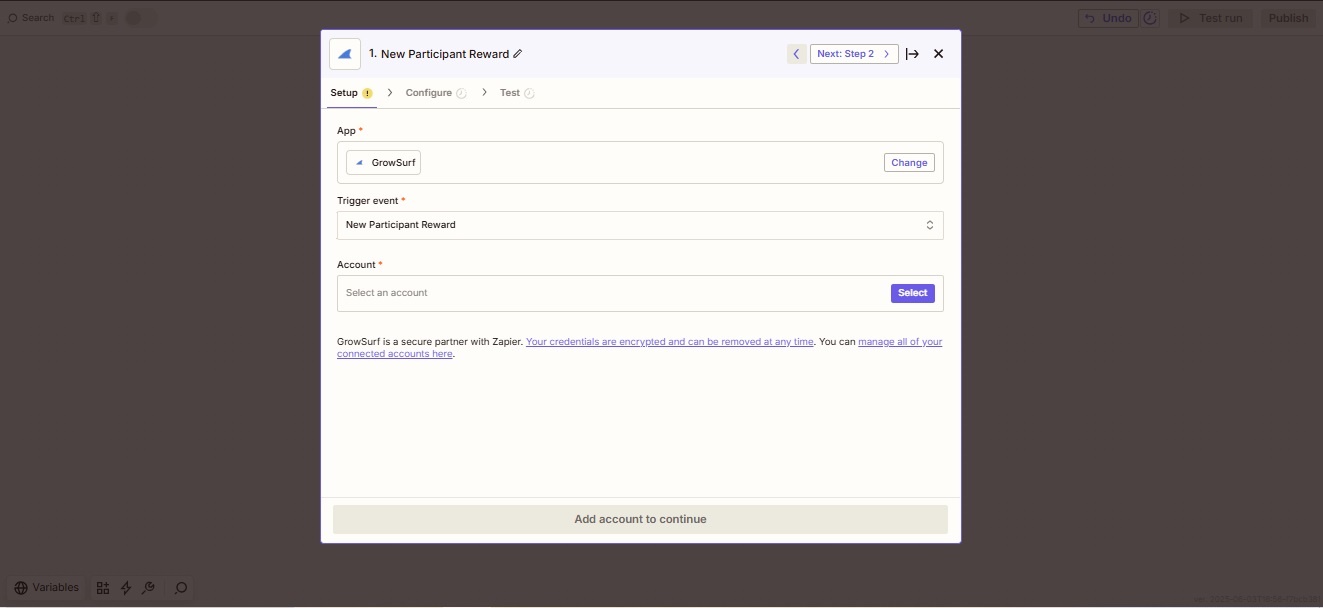
Create a new Zap, choose GrowSurf as the trigger app, and select New Participant as the trigger event.
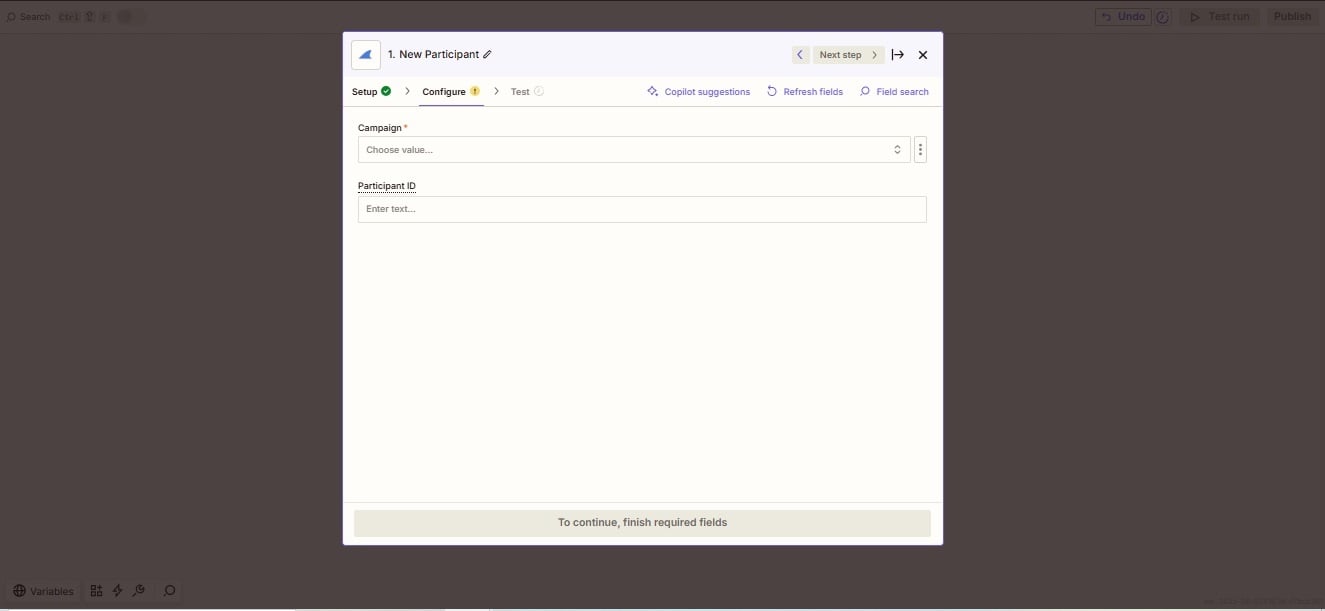
Choose the GrowSurf campaign you want to sync and run the trigger test. This gives you the participant fields you'll map into the CRM action.
In the CRM action step, start with the fields you actually need to work from later: participant email, share URL, participant ID, referrer details, and any referral counts or milestone context your team uses.
If the CRM record should only be created for referred participants, approved rewards, or a specific campaign, insert a Filter before the CRM action. GrowSurf's Zapier docs specifically call out fields such as Participant Referred By and Reward Approved for this kind of branching.
Once the record lands in the CRM, confirm the match key and field mapping are correct. Keeping the CRM action simple is usually better than building multiple conditional updates into the first version of the Zap.
That is usually the cleanest way to avoid duplicate leads or contacts when the same participant shows up in both GrowSurf and your CRM.
Start with either contacts or leads. If you later need extra routing by owner, lifecycle stage, or campaign, add that after the base sync is working reliably.
Only campaigns owned by that account appear in Zapier, so missing campaigns usually mean the wrong GrowSurf login was connected.
Use GrowSurf as the trigger app in Zapier when referral events should launch no-code actions across the rest of your stack.
View Guide →Use GrowSurf triggers in Zapier when your ops team wants a lightweight Google Sheets log of participant or reward activity.
View Guide →
Use the native HubSpot sync so your team can see share links, referral status, and referrer details on the contact record.
View Guide →Usually no. If GrowSurf already has a native integration for your CRM, use that first. Zapier is most useful when the CRM is not natively supported or when you need a separate no-code routing layer.
Start with participant email, the participant's share URL, the GrowSurf participant ID, and any referral or referrer fields your sales or lifecycle team will actually use.
GrowSurf's Zapier docs note that only campaigns owned by the connected account appear in the campaign selector. Reconnect with the correct owner account if needed.
Trusted by marketing and product teams at fast-growing B2C, fintech, and SaaS companies
Successfully submitted!
Error! Please try again
See referral programs that our customers have implemented.